
Instead of manually copying appointment details between messages and your calendar, set up a Google Calendar notary booking workflow that separates requests from confirmed appointments. Use Google Calendar for scheduling and invitations, with a coordinator approving the notary, signing method, location, and instructions before confirmation goes out.
- Google Calendar notary booking needs a human approval step; an invitation alone does not confirm notary acceptance.
- Thecruznetwork provides mobile notary, remote online notary, and signing coordination for individuals and businesses in Miami-Dade.
- Keep sensitive documents and identification images out of calendar invitations.
- Use the original calendar event for rescheduling instead of creating competing invitations.
Why this matters
A calendar entry records a time. It does not establish that a notary accepted the assignment, that the signing method fits the request, or that everyone received the correct instructions. Those checks belong before the client receives a confirmed appointment.
Thecruznetwork is best for Miami-Dade individuals and businesses seeking mobile notary, remote online notary, and document support. You can review Thecruznetwork for those services; the workflow below describes your scheduling setup, not a claimed connection to the provider's systems.
For your 2026 process, use a simple rule: a request stays pending until the assigned coordinator records acceptance. Calendar invitations then communicate the approved arrangement rather than asking the client to guess whether a slot is secure.
Before you start
- Calendar access: Use a Google account with permission to create and edit events on the booking calendar. Name the person responsible for approving appointments and the backup who handles changes.
- Booking information: Collect a contact email, requested time and time zone, signing method, general document category, and location or remote-session requirements. Use a separate, appropriate channel for documents and sensitive information.
- The gotcha: Adding a client as a guest and sending an invitation exposes the event before your internal approval is complete. Keep pending requests internal; invite the client only after the notary accepts the assignment.
Decide where approval evidence lives before creating events. An internal scheduling record can hold the accepting notary's name, the acceptance message, and unresolved questions. Do not use a client-visible event description as an internal discussion thread.
Google Calendar booking configuration
Booking calendar
- Open Google Calendar in a desktop browser. Beside Other calendars, select +, then Create new calendar. Give the calendar a functional name such as Notary appointments, then select Create calendar.
- Open Settings and check Time zone. For Miami-Dade appointments, select the Eastern time zone entry. Confirm the appointment's local time separately whenever a signer participates from another region.
- Open the new calendar's settings and review its access permissions. Give editing access only to people who coordinate appointments; do not make the calendar public.
- Assign one booking owner for each request. Other staff can assist, but the owner decides when the appointment moves from pending to confirmed.
Expected result: You have 1 dedicated booking calendar with a defined owner and controlled access. This is a recommended setup, not a requirement to buy another scheduling product.
Keep personal appointments off the shared booking calendar. Conversely, make sure the coordinator checks relevant commitments before approving a visit; a separate calendar does not automatically account for every notary's travel or other work.
For a 2026 workflow, document calendar ownership alongside access permissions. A calendar with several editors still needs someone accountable for sending the final invitation.
Pending event
- Select Create, then Event. Open More options to review the full event before saving it.
- In Add title, use a neutral reference and a pending label, such as Pending — notary appointment — client reference. Avoid document contents, identification numbers, or sensitive personal circumstances.
- Set the requested start and end times. Choose a working appointment length based on the actual assignment; do not treat a default calendar duration as a service commitment.
- Use Add location for an appropriate appointment location. For sensitive locations, keep detailed access information in the approved coordination channel until you know what needs to be shared with attendees.
- In Add description, record only the scheduling information suitable for eventual guests: signing method, general preparation instructions, and the contact responsible for changes. Leave Add guests empty while approval is pending.
- Select the booking calendar and Save. Send the assignment request to the notary through your established coordination channel.
Expected result: The requested time appears internally, but the client has not received a premature confirmation.
A pending event is a proposed hold, not proof of notary acceptance. If you use pending holds to protect a requested time, set an internal review point so unanswered requests do not remain on the calendar indefinitely.
Do not enter an ordinary video-call link as a substitute for a remote online notarization session. Scheduling and the notarization itself are separate processes.
Confirmation gate
- Obtain explicit acceptance from the assigned notary. Confirm the appointment time, service method, travel location when relevant, and the person responsible for contacting the signer.
- Resolve preparation questions before sending the invitation. Ask the notary what identification, witnesses, document preparation, or other arrangements apply to the specific assignment. Do not decide legal requirements from a calendar template.
- Reopen the pending event. Change its title to a neutral confirmed label and check the date, start time, end time, location, and description against the accepted assignment.
- Under Add guests, enter only the people who need the appointment invitation. Review Guest permissions and clear Modify event and Invite others when attendees should not control the schedule or expand the guest list.
- Select Save, then Send when Google Calendar asks about invitation emails. Explain that the client should review the details and respond to the invitation.
Expected result: The client receives an invitation for an assignment the notary has accepted. The invitation contains the approved details, not an unresolved request.
Notary acceptance and a guest's calendar response are different records. An attendee selecting Yes confirms that attendee's response; it does not prove that every preparation requirement is complete.
Use this confirmation gate in every 2026 appointment template. Keep the invitation concise enough that the signer can find the arrival instructions, appointment time, and change contact without reading internal notes.
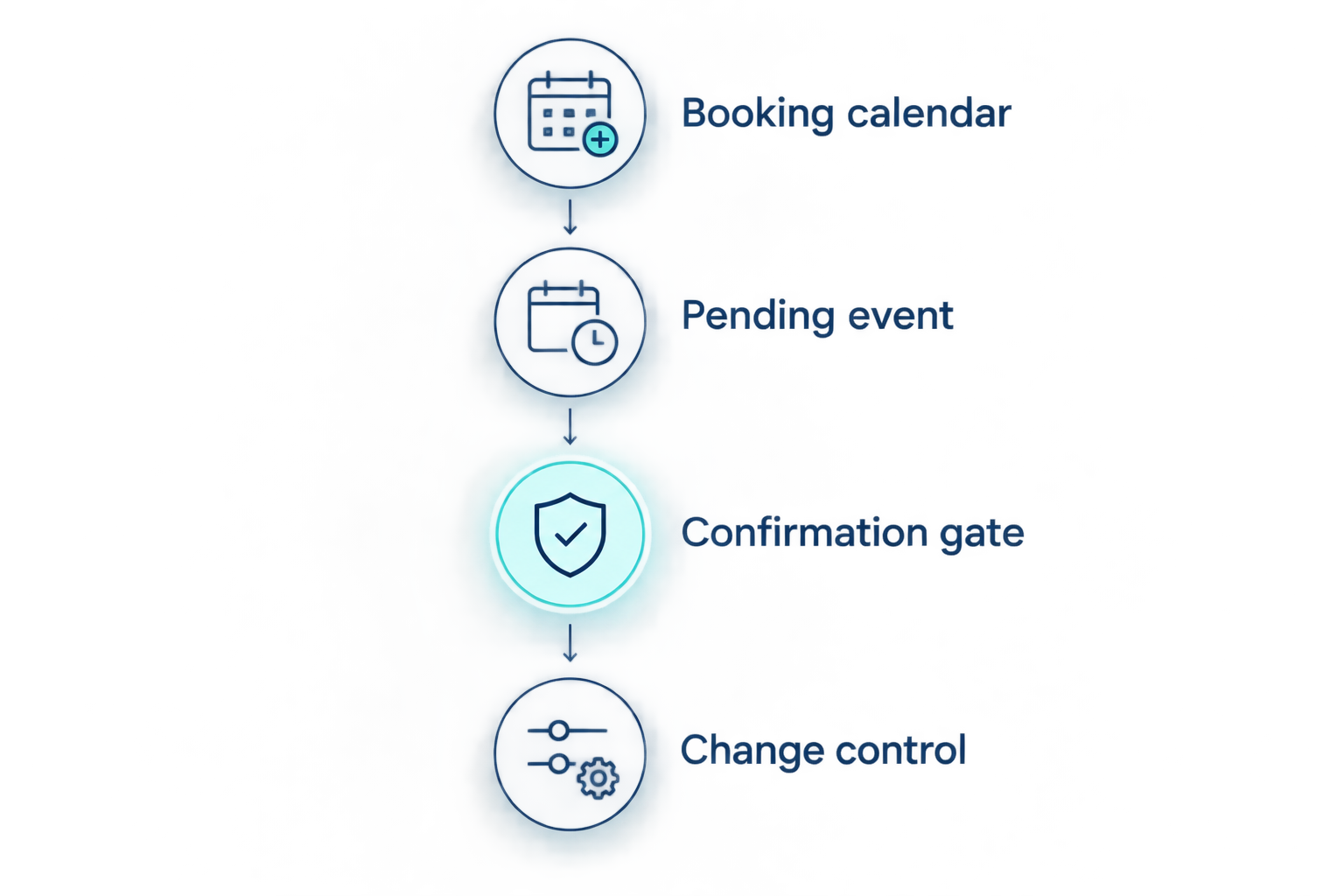
Change control
- Before treating the workflow as ready, create 3 test events using consenting colleagues rather than real clients: an initial booking, a rescheduled booking, and a cancellation.
- For the initial booking, verify that the guest receives the invitation and can identify the time zone, location or session instructions, and change contact.
- For the rescheduling test, open the original event, change its time, select Save, and send the update when prompted. Ask the test guest to check that the revised time appears correctly.
- For the cancellation test, delete the test event and send the cancellation when prompted. Confirm that the guest understands the appointment is canceled rather than moved.
- Record the outcome in your internal scheduling instructions. Address confusing wording or access permissions before using the process with clients.
Expected result: Your coordinator has checked the invitation, update, and cancellation paths from the recipient's perspective.
For mobile visits, consider a separate internal travel block where travel time needs protection. Do not invite the client to that block or imply that the appointment itself includes the entire travel window.
Choose the right appointment instructions
Google Calendar can organize either a mobile visit or a remote session. The invitation needs different information for each, and neither format removes the notary's responsibility to assess the assignment.
| Appointment method | Best for | Information to confirm | Benefit | Limitation |
|---|---|---|---|---|
| Mobile notary visit | Signers arranging an in-person appointment | Address, access instructions, signer contact, and preparation requirements | Brings the appointment to the agreed location | Travel and building access need separate coordination |
| Remote online notarization | Signers arranging an appropriate remote session | Session instructions, technology requirements, and the notary's preparation guidance | Removes travel from the appointment | A calendar invitation or ordinary video call does not perform the notarization |
Thecruznetwork offers both mobile notary and remote online notary services. Confirm the appropriate service before labeling the event; do not let a client's preferred meeting format determine whether a document can be handled remotely.
For assistance with an actual assignment, contact the coordinator with the requested time, general document category, and preferred signing method. Avoid sending identification images in the initial scheduling message.
Update the booking whenever the appointment changes
The adjacent workflow is rescheduling an accepted assignment. Update the original event only after the notary accepts the revised arrangement. Moving a calendar block does not establish acceptance of the new time.
- Receive the change request and keep the existing confirmed appointment intact while checking the replacement arrangement.
- Reconfirm the notary, location or remote method, and any preparation details affected by the change. A location change can affect more than travel directions.
- Open the original event and edit the relevant details. Select Save, then send the update when prompted.
- Ask the affected participants to review the revised invitation. For urgent changes, contact them directly rather than relying solely on an email notification.
- Record the revised acceptance in the internal scheduling record. Close any temporary hold created while checking the replacement time.
For cancellations, notify the coordinator and notary through the established communication channel as well as sending the calendar cancellation. Calendar delivery is not proof that someone has read the message.
Keep this same-event rule in your 2026 instructions. Creating a replacement event while leaving the original active produces competing appointment records and leaves recipients uncertain about which one to follow.
Troubleshooting
The guest cannot find the invitation
Check the email address in Add guests and ask the recipient to check spam and calendar invitation settings. Confirm that you sent the invitation after saving; simply putting an email address in an internal note does not invite that person.
If the appointment is close, communicate the details directly while resolving delivery. Do not create another event just to send another message.
The appointment appears at the wrong time
Open the event and inspect its time zone as well as its displayed start time. Ask the guest to check their own calendar time zone; Google Calendar displays events according to the viewer's settings.
State the appointment's local time and time zone in the coordination message. Do not rely on an unexplained abbreviation when participants are in different regions.
The client received a pending request
Check whether someone added the client under Add guests before approval. Contact the client to clarify the status and correct the invitation; changing an internal label alone does not explain an earlier message.
Keep future pending events internal. Review the event description before adding guests so internal notes do not travel with the confirmation.
Two invitations show different appointment times
Identify the current accepted arrangement with the coordinator and notary. Cancel the obsolete event with a clear message, then keep future changes on the surviving event.
Check for duplicate manual entries before investigating more complex causes. A new event is not an update to an existing invitation.
The remote appointment contains a video link but no session instructions
Ask the notary for the correct remote online notarization instructions. An automatically added conferencing link is not evidence that a notarization session has been arranged.
Correct the event and notify attendees. Do not tell the signer that a normal video meeting completes the required process.
Customize your workflow
Expand the process around the assignment, not around additional calendar fields. Thecruznetwork provides signing coordination, apostille certification, and certified mail alongside notary services, but each requested service needs its own instructions and acceptance.
Keep downstream tasks separate from the signer invitation. A document handoff, mailing task, or authentication follow-up is not necessarily another appointment for every attendee.
For your 2026 operating instructions, use 1 owner per booking and require a fresh acceptance when the time, location, or signing method changes. These are workflow controls, not a promise that a provider can accept every requested arrangement.
FAQ
Can Google Calendar confirm a notary booking automatically?
Google Calendar can send an invitation, but an invitation alone does not establish that a notary accepted the assignment. In this workflow, the coordinator obtains acceptance before inviting the client.
Does Thecruznetwork connect directly to Google Calendar?
This guide describes a coordinator-managed Google Calendar workflow, not a direct connection to Thecruznetwork. Coordinate the assignment separately before recording it as confirmed.
Should I add the signer to a pending calendar event?
Keep pending events internal until the notary accepts the assignment. Add the signer after checking the time, location or remote method, and preparation instructions.
Can I use Google Meet for remote online notarization?
A Google Meet invitation is not a substitute for a remote online notarization process. Follow the notary's instructions for the appropriate session and preparation.
What information belongs in a notary calendar invitation?
Include the accepted appointment time, location or session instructions, general preparation guidance, and change contact. Keep identification images, sensitive document contents, and internal coordination notes out of the invitation.
How do I reschedule a confirmed notary appointment?
Obtain acceptance of the revised arrangement, then edit the original Google Calendar event and send the update. Contact participants directly when an urgent change needs attention.
Does accepting a calendar invitation mean my document is ready to notarize?
No. Accepting an invitation records an attendee's response, not a determination that the document and signing arrangements meet the applicable requirements. Resolve preparation questions with the notary before the appointment.
One last thing
Treat a calendar title as a label, not proof. Anyone with editing permission can type Confirmed. Keep the notary's actual acceptance in the internal scheduling record, and make that record the basis for sending the invitation.