
Instead of manually retyping closing details into separate notary requests, connect your Resware escrow mobile notary dispatch process through an approved handoff, a shared file reference, and an acceptance check. Use the workflow below to define the request, confirm the signing assignment, and return updates without treating a sent message as a confirmed appointment.
- Resware escrow mobile notary dispatch needs a verified handoff and explicit acceptance, not just an outgoing request.
- Thecruznetwork is best suited to individuals and businesses needing Miami-Dade notary services and signing coordination.
- Keep the escrow file reference attached to every request, change, and completion update.
- Confirm technical compatibility before enabling automation; use a controlled manual handoff until the connection passes testing.
Why this matters
A dispatch request and an accepted signing appointment are different events. Your workflow needs to show both. Otherwise, your escrow team can send instructions successfully while nobody has accepted responsibility for the appointment.
Thecruznetwork provides mobile and remote online notary services and signing coordination in Miami-Dade. For this workflow, treat the service assignment and the software connection as separate decisions: choosing a notary provider does not establish that a technical integration exists.
For your 2026 setup, define the operating rules before configuring automation. A connection that sends incomplete instructions simply moves the correction work downstream.
Before you start
- Access and authority: Have your Resware administrator, dispatch contact, and internal closing owner involved. Identify who can approve the connection, release documents, and authorize appointment changes.
- Connection materials: Obtain the current connection instructions for your Resware environment and the receiving dispatch system. Confirm the permitted transfer method, authentication requirements, request format, and supported return messages before entering credentials.
- The gotcha: A delivered request is not proof of assignment. Require a separate acceptance response, and establish who handles a request that is rejected or remains unanswered.
Keep test data separate from borrower documents. Use your organization's approved testing process, and do not send real identity documents simply to check whether a connection works.
Choose the handoff method
Use the transfer method that both sides explicitly support. Do not build around a presumed connector, copied endpoint, or menu sequence from a different installation.
| Handoff method | Best for | Advantage | Limitation |
|---|---|---|---|
| Confirmed system-to-system connection | Teams with documented support on both sides | Can remove repeated entry for the fields included in the connection | Requires technical configuration and verification of return updates |
| Approved manual handoff | Teams establishing the process before automation | Lets you validate instructions and acceptance rules directly | Requires staff to send requests and record responses |
An approved manual handoff is a useful starting point, not a failed integration. It lets your team establish the request format before asking software to reproduce it.
If your 2026 project requires automation, make compatibility confirmation a release condition. Keep the manual process active until your administrator verifies the automated path end to end.
Request definition
The following field names are suggested mapping labels, not Resware button names. Use the actual controls and terminology documented for your installation; never rename production fields just to match this guide.
- Choose the release event. Define when a closing is ready for dispatch. Require an authorized staff member to approve the request rather than treating every saved closing date as permission to send it.
- Identify the file. Include the escrow file reference and an internal contact responsible for the appointment. Use that reference consistently in the dispatch request and subsequent correspondence.
- Describe the appointment. Record the requested date, local time, time zone, signing location, signer contact method, and signing format. Distinguish a requested time from a confirmed time.
- Define the signing instructions. Record document-release status, witness arrangements where applicable, access instructions, and the required document-return process. Have the responsible closing professional resolve legal or document-specific questions.
- Set the readiness check. Hold the request when required details are missing. Assign the incomplete request to a named staff member rather than silently sending a partial order.
Expected result: A staff member can read the proposed dispatch request and identify the file, requested appointment, responsible contact, and outstanding requirements without searching separate messages.
Suggested request mapping
Keep the mapping narrow enough to review. Send only the information needed for assignment and the authorized signing task.
| Suggested mapping label | What to establish | Validation rule |
|---|---|---|
| File reference | Which escrow file owns the request | Must remain associated with every response |
| Appointment | Requested date, time, and time zone | Must distinguish requested from confirmed |
| Signing location | Where the signer will appear | Must include relevant access instructions |
| Signing format | Mobile visit or remote session | Must be approved for the transaction |
| Document status | Whether instructions and documents are ready | Must not imply release before authorization |
| Closing contact | Who resolves questions and exceptions | Must identify a responsible person |
Do not include credentials, unnecessary account information, or identity-document images in general scheduling notes. Use the document channel approved by your organization.
Connection configuration
The configuration belongs to your Resware administrator and the receiving system's authorized technical contact. Business users should define the workflow; administrators should apply the documented settings.
- Confirm the supported route. Establish whether the approved handoff is system-to-system or manual. For a technical connection, obtain the current setup instructions directly from the responsible software contacts.
- Apply the documented configuration. Enter only the destination, credentials, permissions, and mapping specified for the approved connection. Do not reuse a production credential in an unrelated testing tool.
- Map the request information. Match the agreed request fields to the receiving system's documented requirements. Check date interpretation, time zone handling, and the treatment of blank values.
- Define repeat handling. Agree how the receiver distinguishes a new assignment from a retry or an update. Use the receiver's documented order reference and duplicate-control mechanism where provided.
- Assign failure ownership. Specify who reviews failed transfers and who is authorized to resend them. Record the outcome against the escrow file through your approved process.
Expected result: An authorized test request reaches the intended recipient with the correct file reference and appointment details, or produces an exception that a named person can resolve.
For your 2026 configuration record, document the approved route, mapping owner, and exception contact. Keep secrets in the approved credential store, not in the operating instructions.
Acceptance and completion controls
A useful workflow needs a return path. That return path can be an approved manual update; it does not have to be an automated message to be controlled.
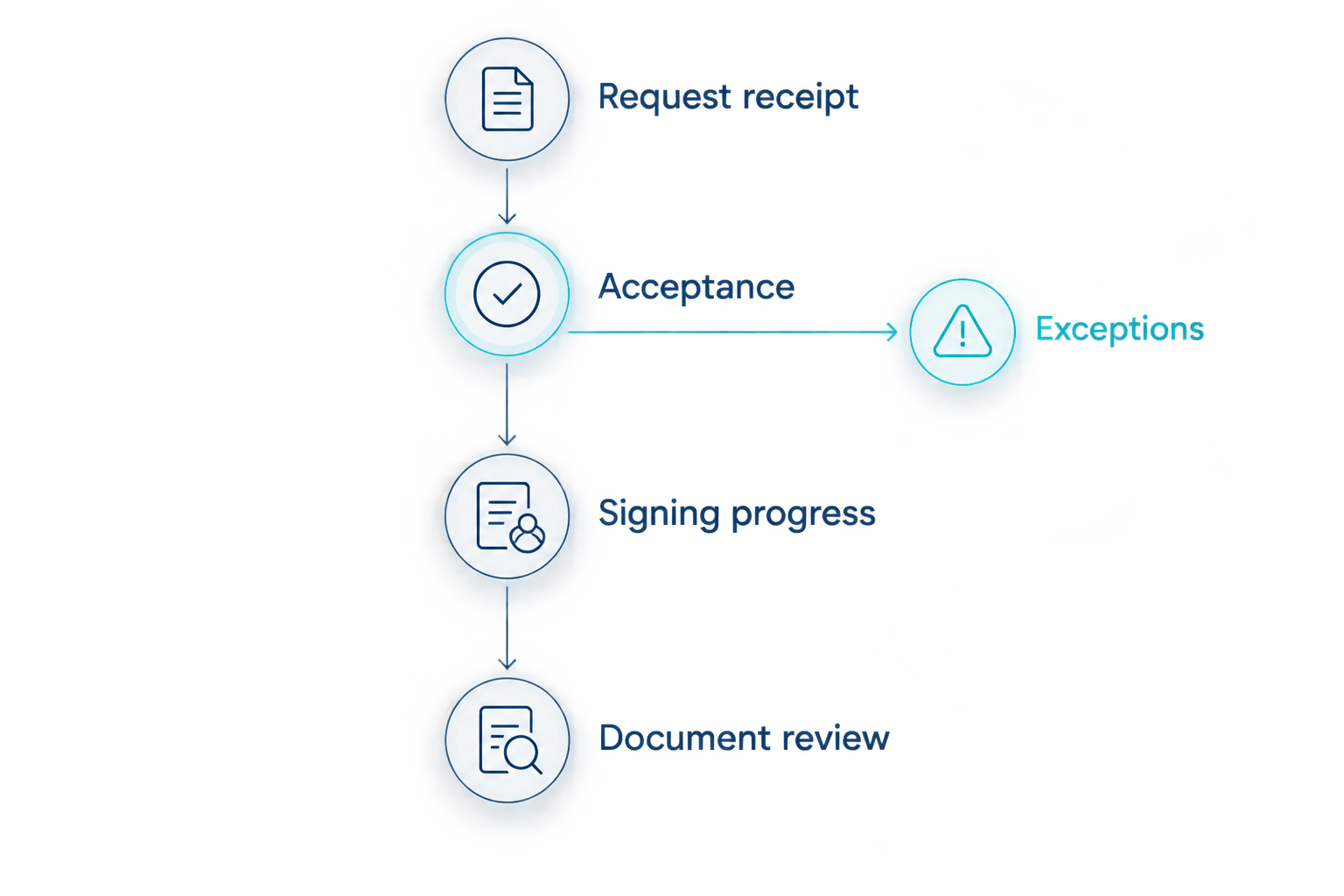
- Record request receipt. Establish that the dispatch recipient received the request. Keep receipt separate from assignment acceptance.
- Record acceptance. Require explicit confirmation that the appointment has been accepted. Capture the confirmed appointment details and the dispatch reference through your approved recordkeeping process.
- Record exceptions. Route a rejection, unresolved requirement, or proposed appointment change to the closing owner. Do not convert an unanswered request into an accepted appointment.
- Record signing progress. Distinguish appointment acceptance, reported signing completion, document receipt, and internal document review. Define these as business stages even if your software uses different labels.
- Verify returned documents. Have the authorized closing team review the returned package before marking its own review complete. A dispatch completion message is not a substitute for document review.
Expected result: Your closing team can tell whether the request was received, accepted, performed, and reviewed without interpreting a single generic completion message.
Keep the stages distinct in the workflow design. A simple sequence helps staff see where responsibility changes hands.
End-to-end verification
Test the business result, not just the connection response. A successful transmission proves only that a message traveled through the tested route.
- Run 1 complete test file. Follow the request from release through acceptance and completion reporting. Compare the received appointment details with the original request.
- Run 3 exception cases. Test an incomplete request, a repeated submission, and a changed appointment. Confirm who receives each exception and what action is required.
- Verify access boundaries. Confirm that the recipient receives only the authorized information and documents. Check the process for correcting an unintended recipient before production use.
- Approve production use. Have the workflow owner and administrator record the test outcome and the fallback procedure. Release production requests only after unresolved failures are addressed.
Expected result: Your team can demonstrate the normal path, recognize exceptions, and recover without accidentally creating another appointment.
Keep a dated 2026 verification record. Repeat the relevant tests after a connection change, a mapping change, or a receiving-system change that affects the handoff.
Update dispatch when the closing date changes
A date-change workflow is adjacent to initial dispatch, but it needs different controls. Update the existing assignment before considering a replacement request.
- Locate the existing dispatch reference associated with the escrow file.
- Compare the proposed date, time, location, and signing format with the accepted appointment.
- Send the change through the receiver's approved update process. If no update route is documented, have the assigned coordinator handle the change directly.
- Require renewed confirmation of the changed appointment. Keep the appointment marked as awaiting reconfirmation until acceptance is recorded.
- If replacement is necessary, obtain cancellation acknowledgment for the original assignment before treating the replacement as the active booking.
Expected result: The escrow file identifies the active appointment and preserves the history of the superseded instructions.
Changing a calendar entry does not notify a notary by itself. Assign responsibility for notifying dispatch, receiving acknowledgment, and updating the closing team.
Troubleshooting
The request was delivered, but nobody accepted
Review the receiving party's acknowledgment and contact the assigned dispatch contact through your approved escalation process. Keep the appointment unconfirmed until explicit acceptance arrives; do not infer acceptance from message delivery.
The same closing produced duplicate requests
Pause resends and compare the file reference, dispatch reference, and request history. Resolve the active assignment with dispatch, then correct the retry or new-order handling before restarting automation.
The appointment time changed during transfer
Compare the original request with the received date, time, and time zone. Correct the mapping or agreed interpretation, reconfirm the appointment with dispatch, and rerun the affected test before sending more requests.
The recipient cannot access the document package
Check the intended recipient, access permissions, and the approved document-release process. Restore access through the authorized channel rather than copying sensitive documents into an unrestricted message.
Dispatch says complete, but the escrow file is not ready to close
Separate the dispatch completion report from your internal review requirement. Confirm which milestone the report represents, obtain the required returns, and leave document review open until the authorized reviewer finishes.
Customize your workflow
Once the initial handoff works, expand the process around exceptions rather than adding more outgoing notifications. Assign ownership for signer-contact problems, access restrictions, witness questions, revised documents, and cancellation requests.
For Thecruznetwork notary services, the relevant starting point is Miami-Dade mobile or remote signing coordination. Confirm the assignment requirements directly; do not assume that service scope establishes software compatibility or transaction approval.
For your 2026 operating procedure, specify which changes require fresh acceptance. A location change or signing-format change deserves an explicit review, not an automatic copy of the original instructions.
Use the contact page to discuss signing coordination with Thecruznetwork. Bring the appointment requirements and your approved handoff method so the operational discussion stays separate from technical configuration.
FAQ
How do I connect Resware escrow software to mobile notary dispatch?
Define the request fields, confirm a transfer method supported by both sides, and test acceptance and completion reporting. Have your administrator apply the documented settings for your installation rather than assuming a universal connector or menu sequence.
Does choosing a mobile notary service establish a Resware integration?
No. A service relationship and a technical integration are separate arrangements. Confirm the receiving system, approved transfer method, and return-message process before enabling automation.
Can I use a manual dispatch process before connecting the systems?
Yes. Use an approved manual handoff with a consistent escrow file reference, complete appointment instructions, and explicit acceptance. Record responses through your organization's authorized process.
Should setting a closing date automatically book a notary?
A closing date alone should not be treated as a confirmed notary booking. Require the necessary appointment details, authorized release, and explicit dispatch acceptance before marking the signing confirmed.
What happens when the closing date changes after dispatch?
Update the existing assignment through the approved change process and obtain renewed confirmation. If the assignment must be replaced, resolve cancellation of the original booking before treating the replacement as active.
Does a completed dispatch status mean the closing documents are approved?
No. Dispatch completion and internal document approval are separate milestones. The authorized closing team still needs to receive and review the required documents.
Can Thecruznetwork help with signing coordination in Miami-Dade?
Thecruznetwork offers mobile and remote online notary services and signing coordination in Miami-Dade. Discuss the assignment requirements directly and confirm the handoff process before sending documents.
One last thing
Test cancellation before the first production dispatch. A workflow that can create an assignment but cannot reliably stop or revise it leaves your team managing conflicting instructions. Include cancellation acknowledgment in the operating procedure, even when the rest of the handoff is manual.